1
Open settings
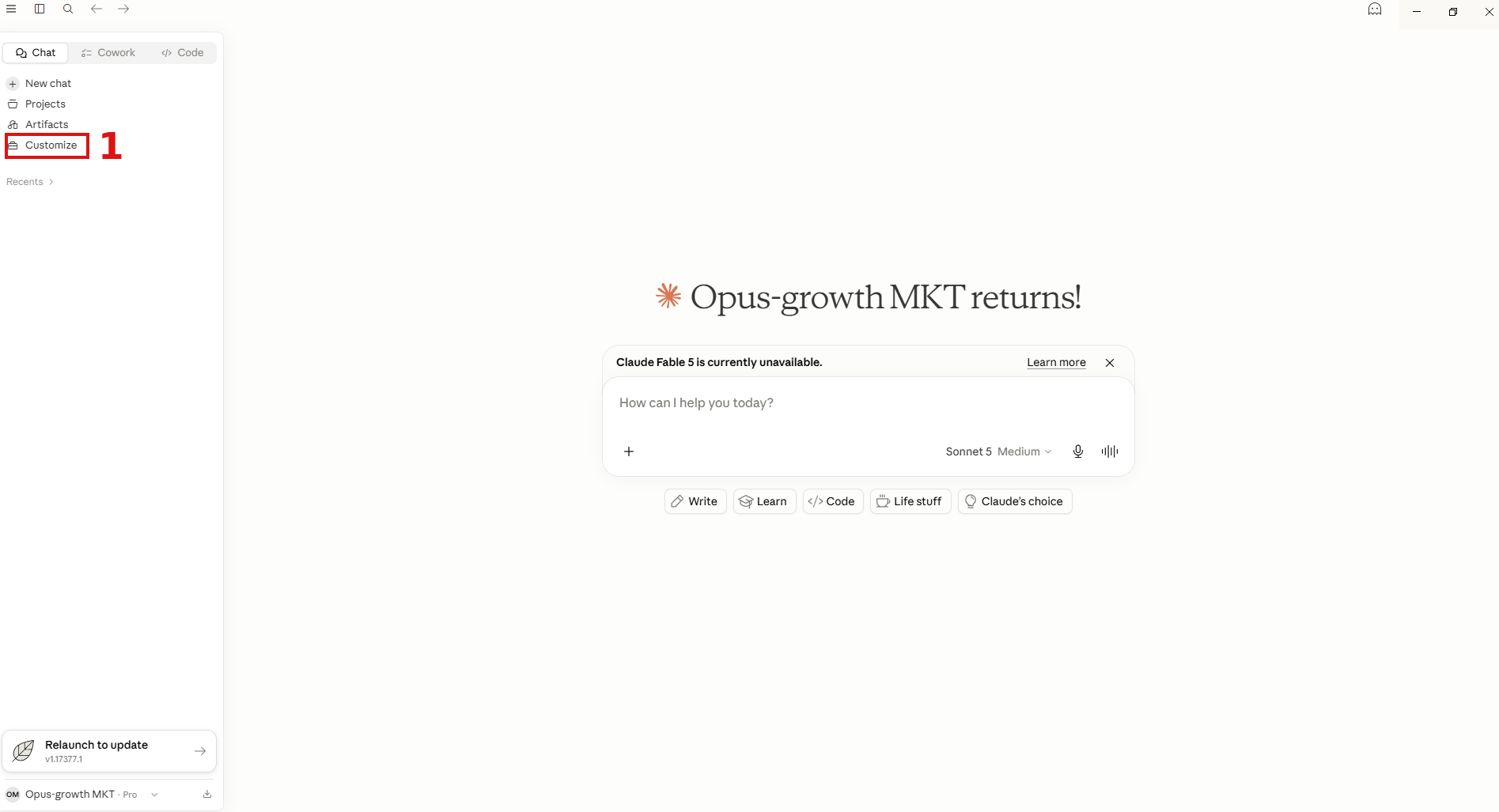
In the Claude app, click Customize 1 in the left menu.
Part 1 of 2
Add the Opus Growth custom connector from Claude's settings and approve access.
In the Claude app, click Customize 1 in the left menu.
In Settings, open Connectors 2 from the left menu. Click Add 3 at the top right, then choose Add custom connector 4.
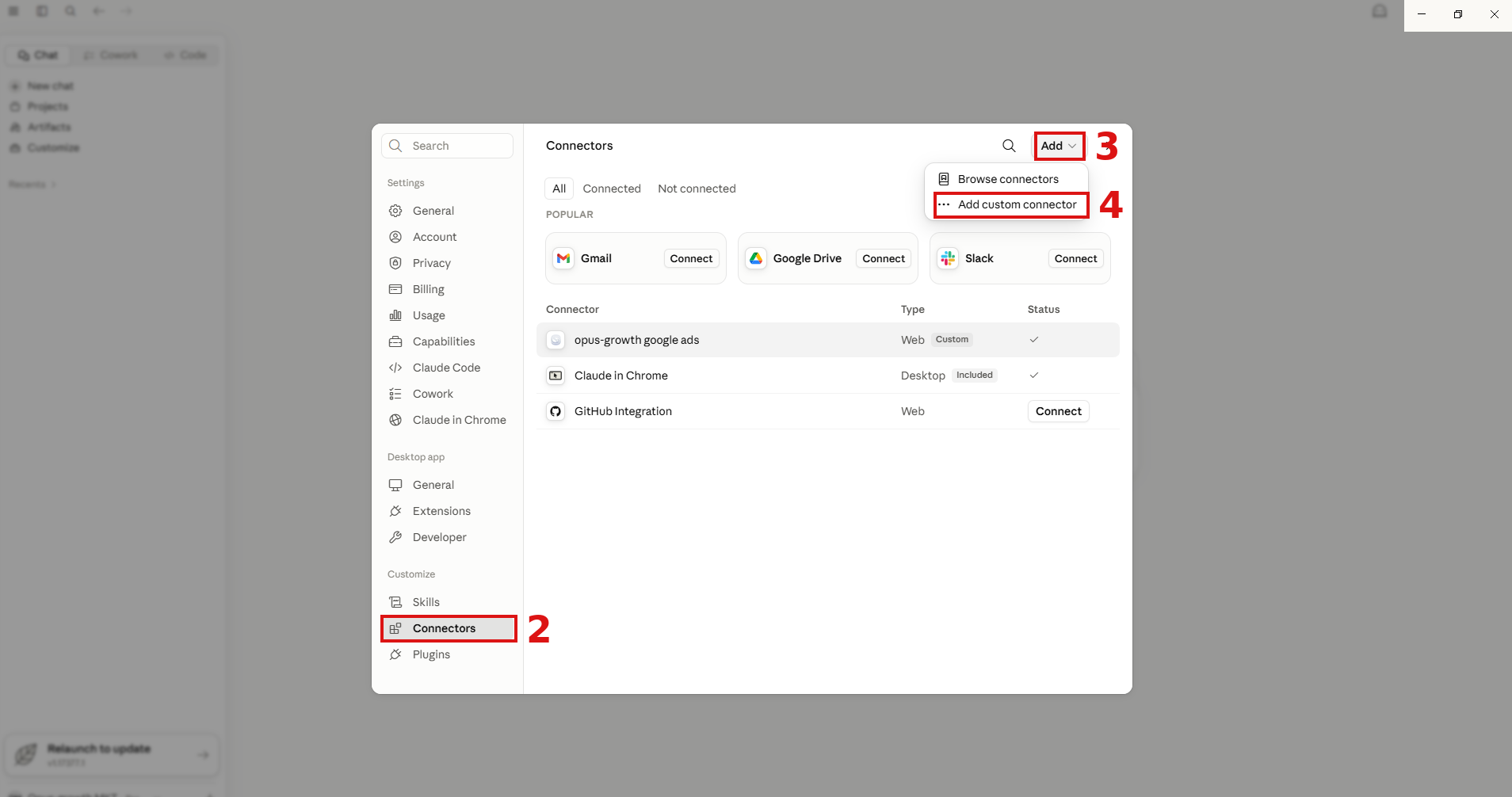
In the name field 5 type Google Ads Connector. In the URL field 6 enter https://googleads.opus-growth.com/mcp and click Add 7.
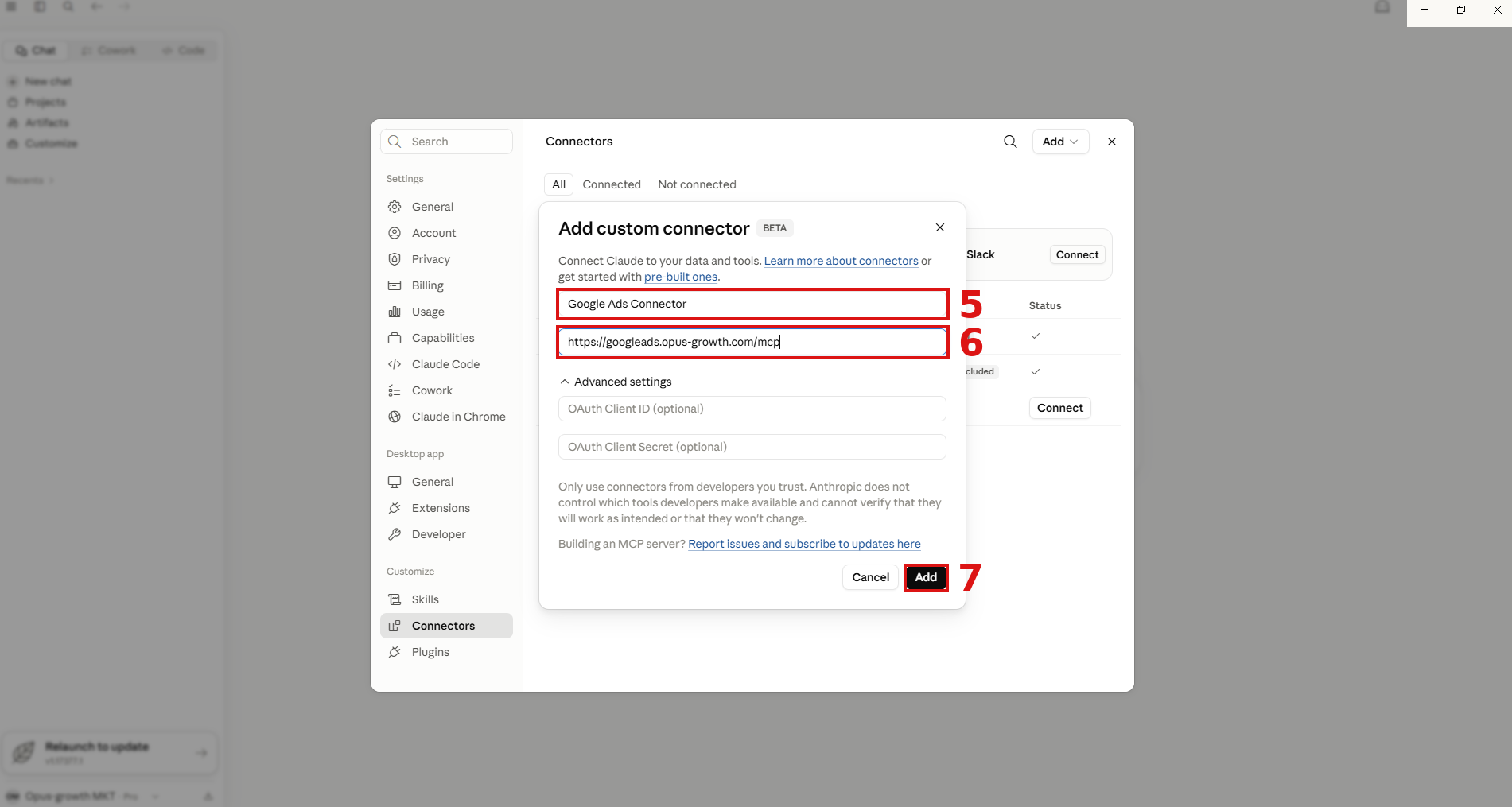
Once the connector is added, click Connect 8 on the page that opens.
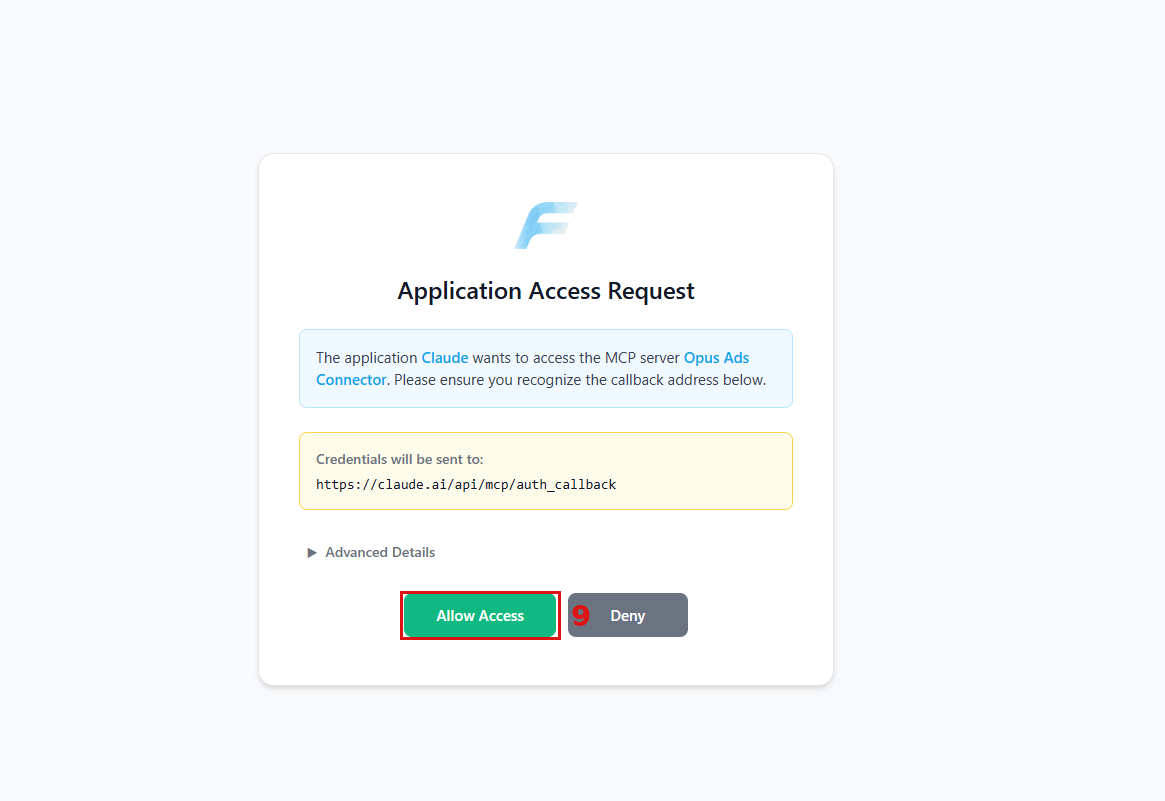
On the authorization page that opens in your browser, click Allow Access 9. This lets Claude reach the Opus Growth MCP server.

Hey! I'm Talat, the founder of Opus Growth 👋
Got a question or ran into an issue? Write here — if I'm online you'll hear back right away, otherwise I'll reply myself soon.