6
Ask Claude to connect
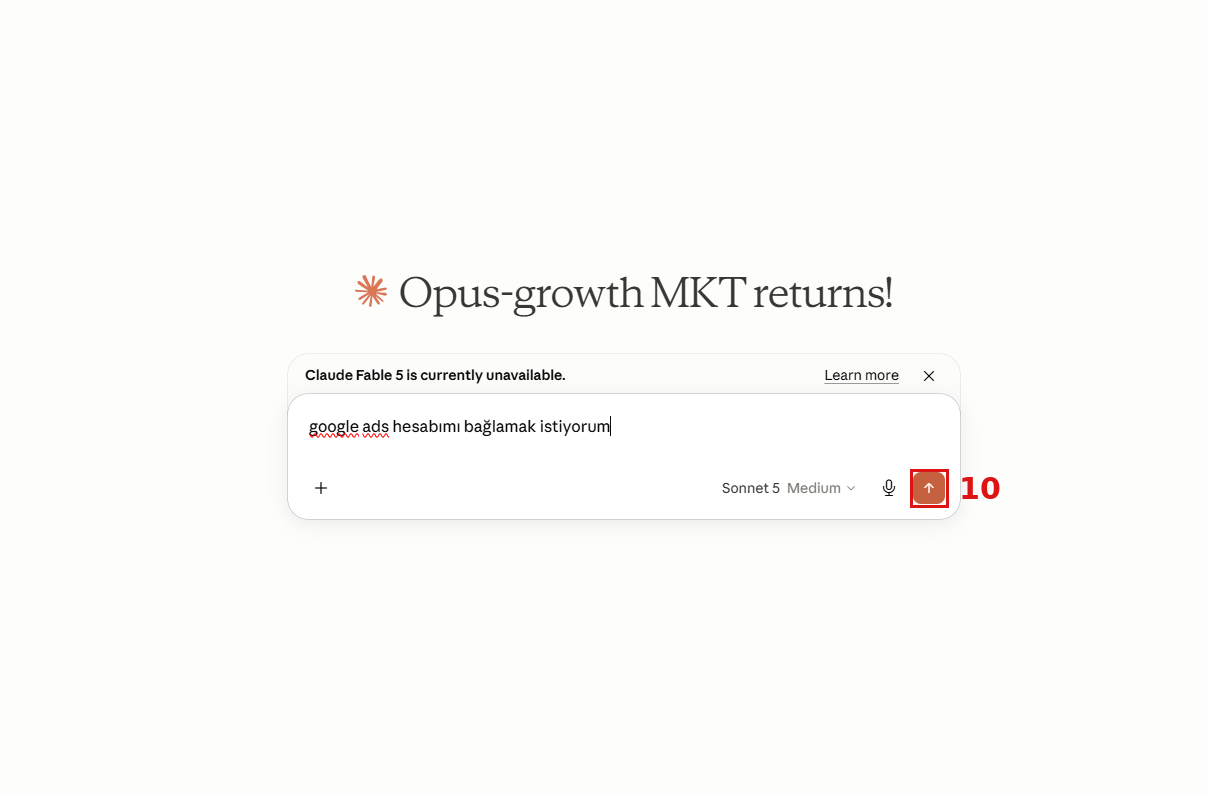
Open a new chat, type “I want to connect my Google Ads account” in the message box, and click send 10.
Part 2 of 2
Connect via Google OAuth from Claude and choose the account you'll manage.
Open a new chat, type “I want to connect my Google Ads account” in the message box, and click send 10.
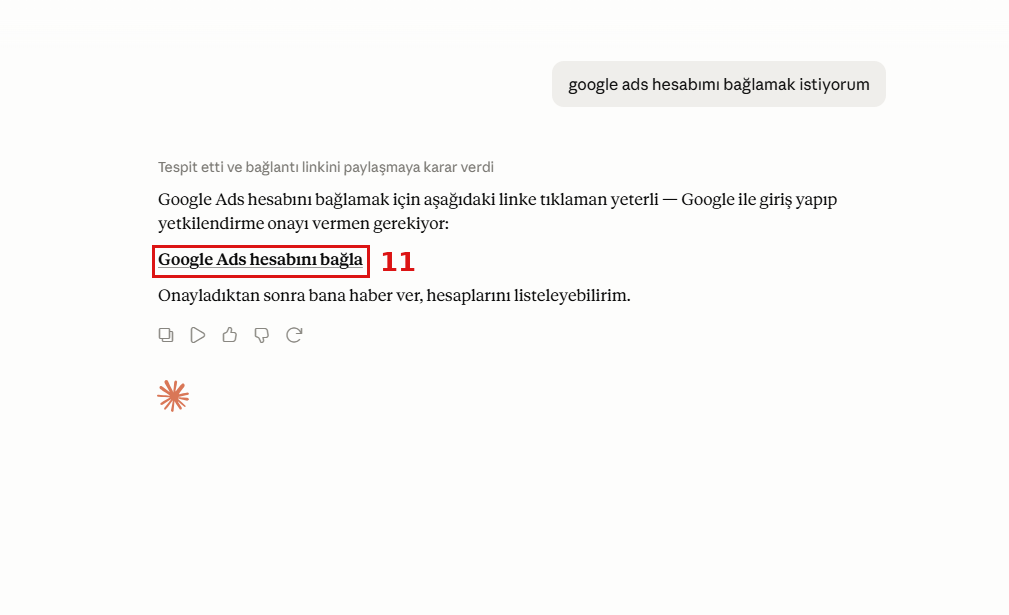
Claude sends you an authorization link. Click Connect Google Ads account 11.
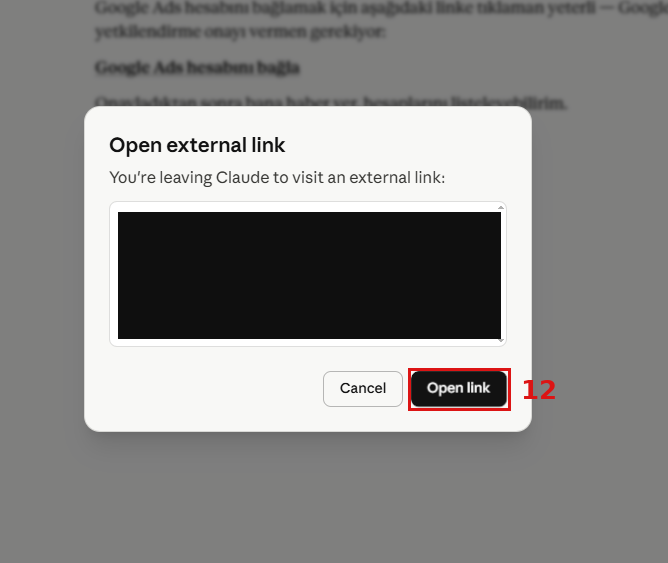
Claude shows a dialog noting you're opening an external link. Click Open link 12.
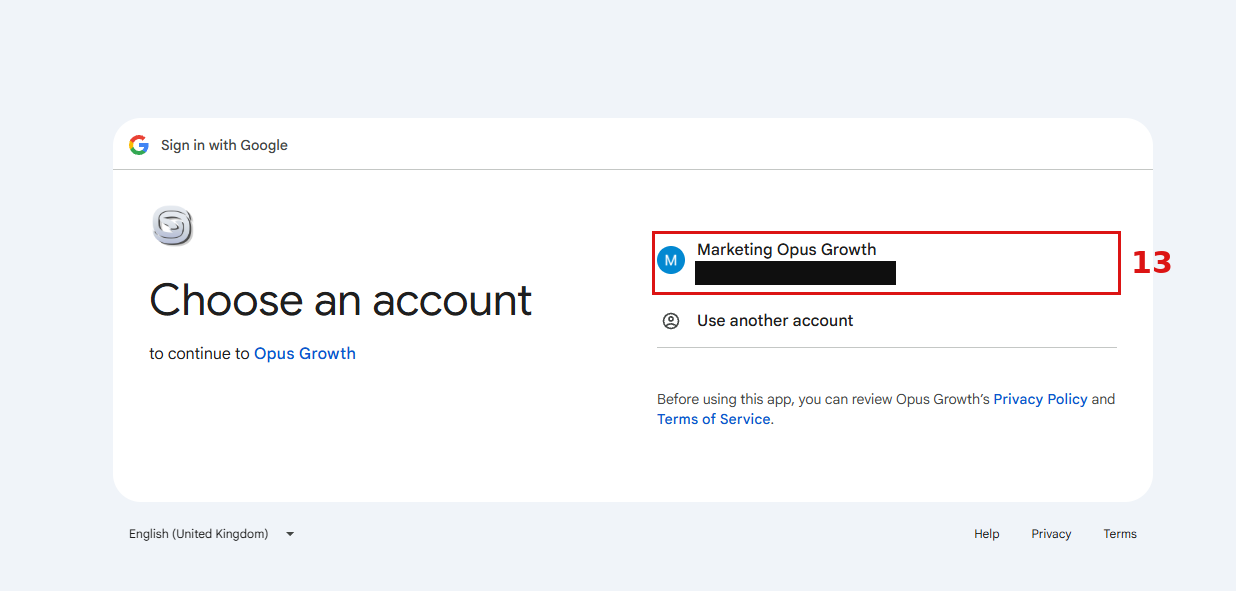
On the Google sign-in page, click the Google account 13 your Google Ads account belongs to.
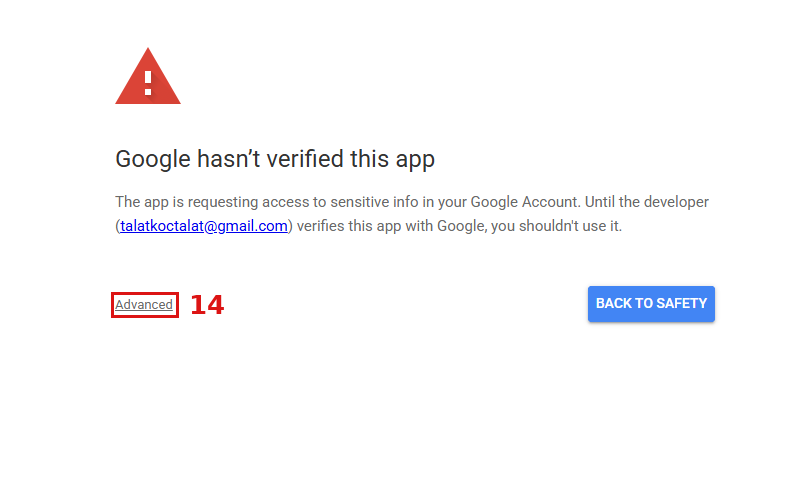
Google may show a notice that the app isn't verified yet. This is normal — to continue, click Advanced 14.
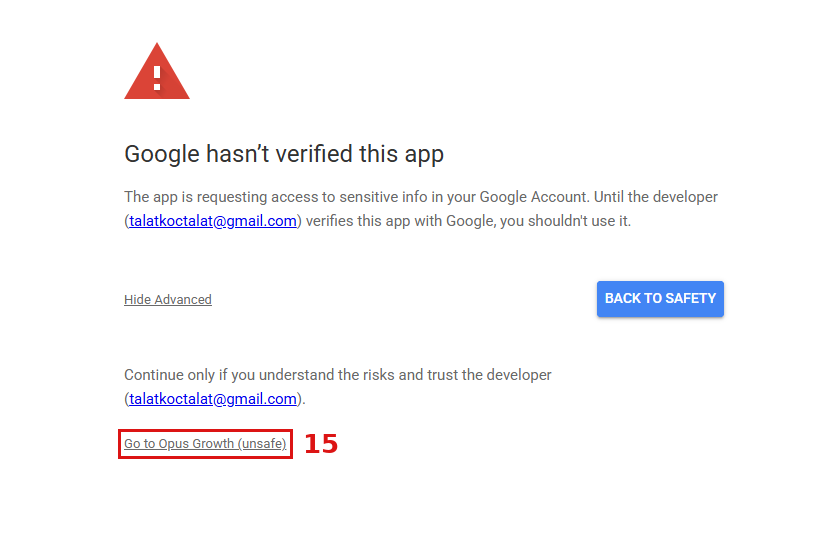
In the expanded section, click Go to Opus Growth (unsafe) 15.
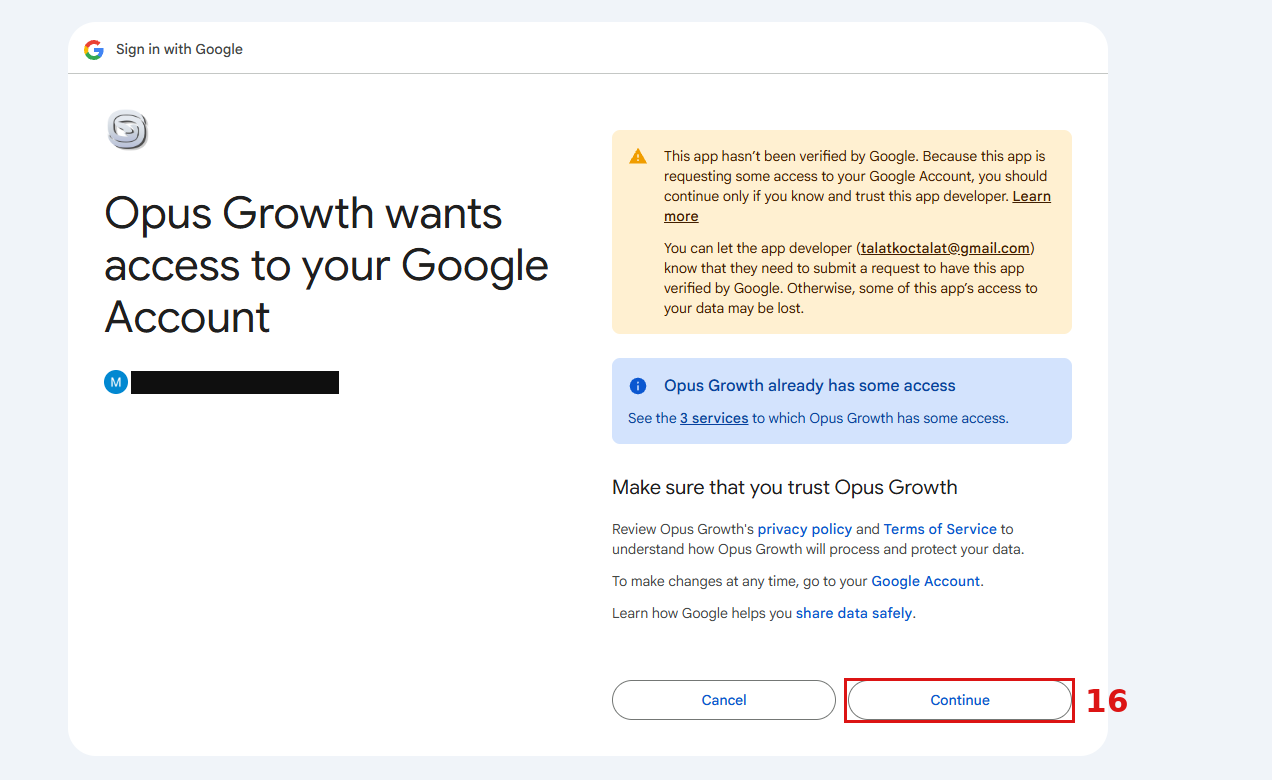
On the “Opus Growth wants access to your Google Account” screen, click Continue 16.
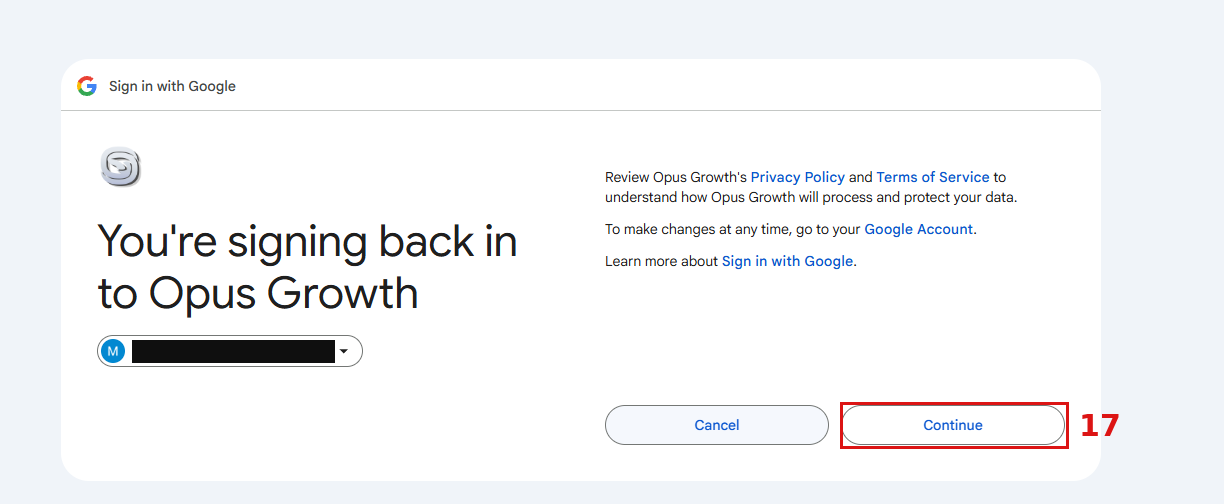
On the final confirmation screen, click Continue 17. Google authorization is complete after this step.
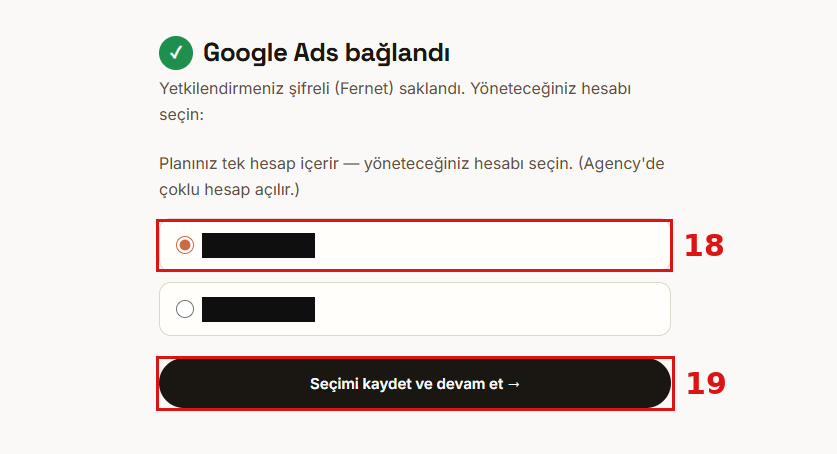
On the “Google Ads connected” screen, select the account 18 you want to manage and click Save selection and continue 19. On the Agency plan you can select multiple accounts.
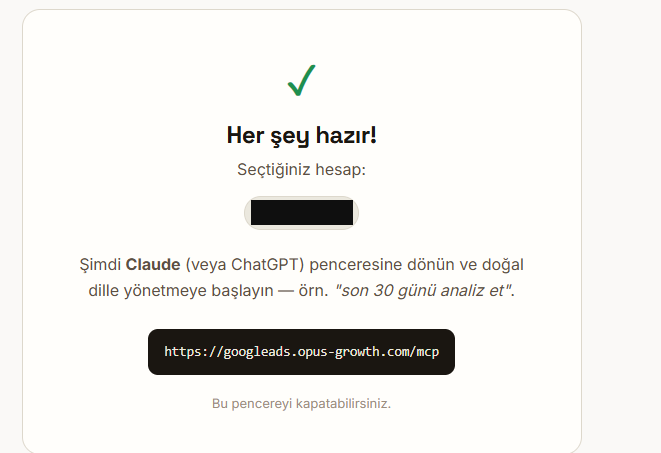
When you see the “You're all set!” screen, the connection is established. There's nothing to click here — you can close the window.