Step 1
Open settings
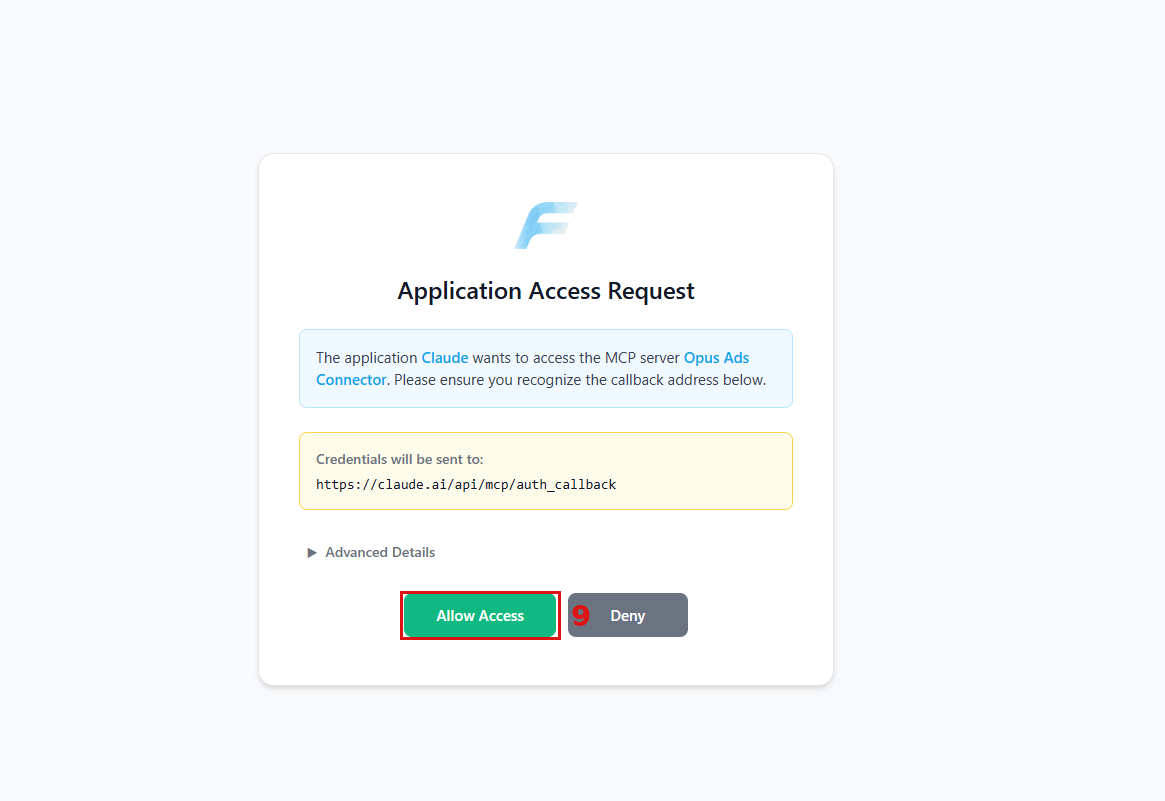
In the Claude app, click Customize 1 in the left menu.
Part 1 / 2
Add the Opus Growth custom connector from Claude's settings and approve access.
In the Claude app, click Customize 1 in the left menu.
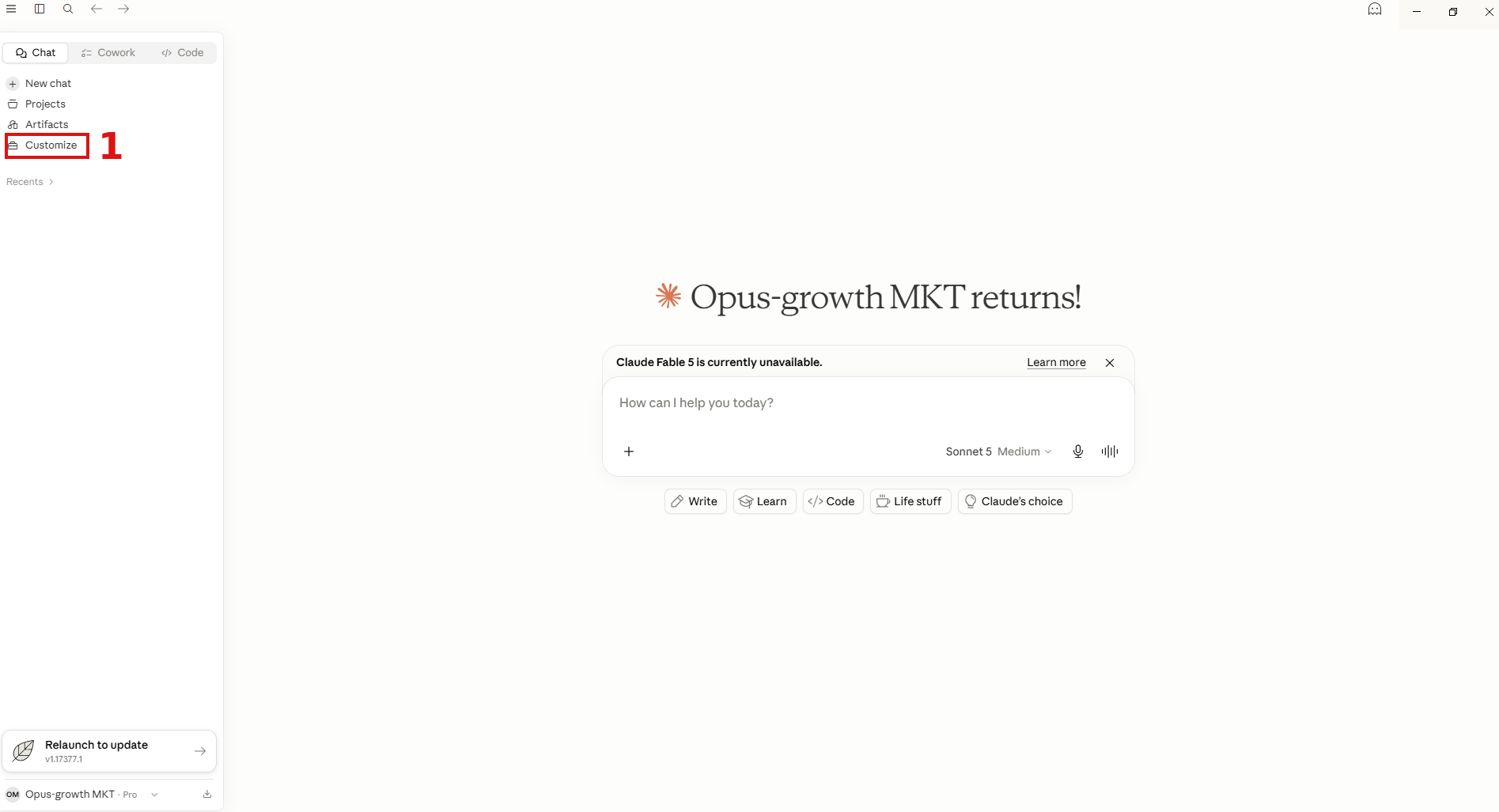
In Settings, open Connectors 2 from the left menu. Click Add 3 at the top right, then choose Add custom connector 4.
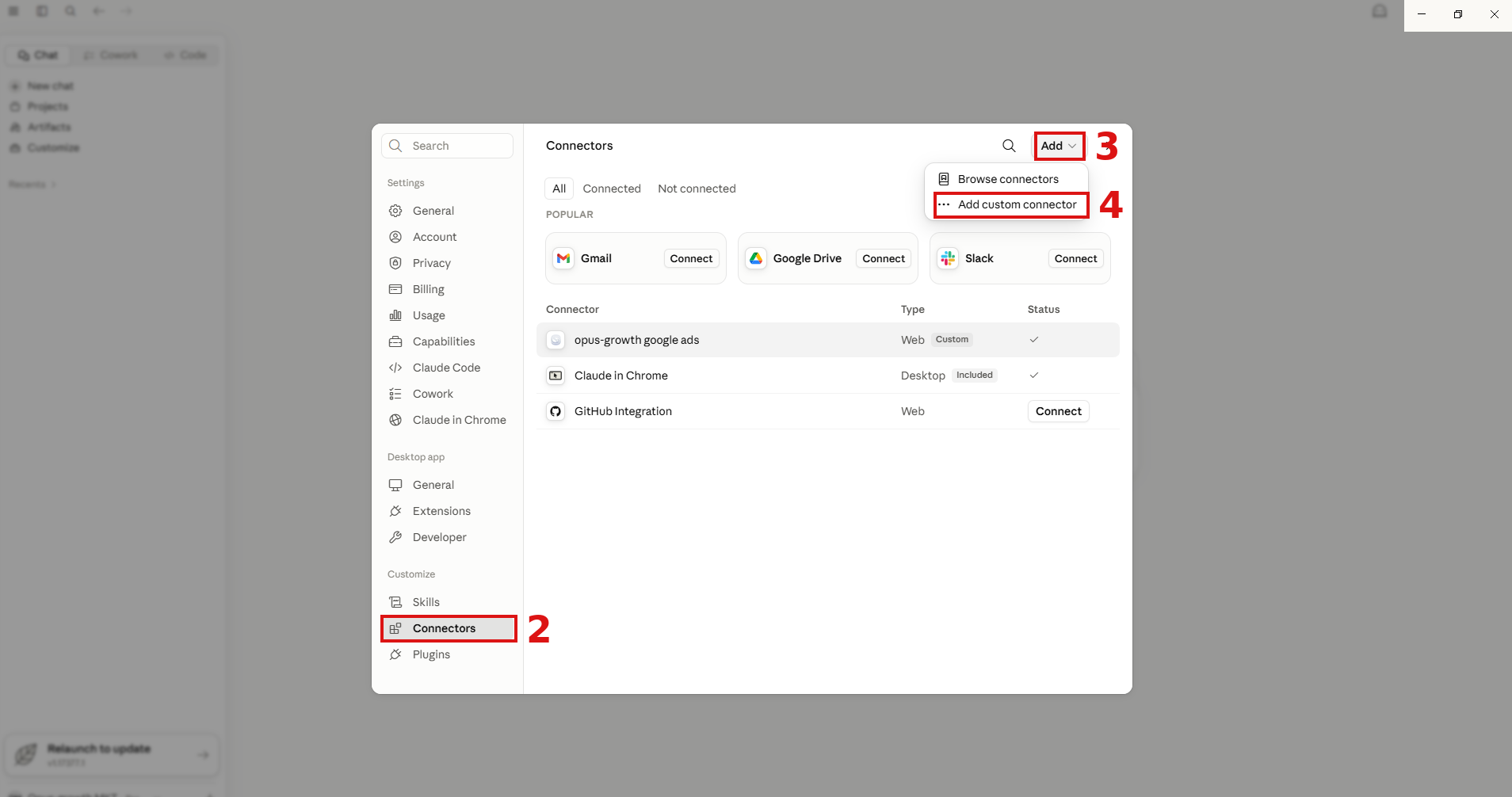
In the name field 5 type Google Ads Connector. In the URL field 6 enter https://googleads.opus-growth.com/mcp and click Add 7.
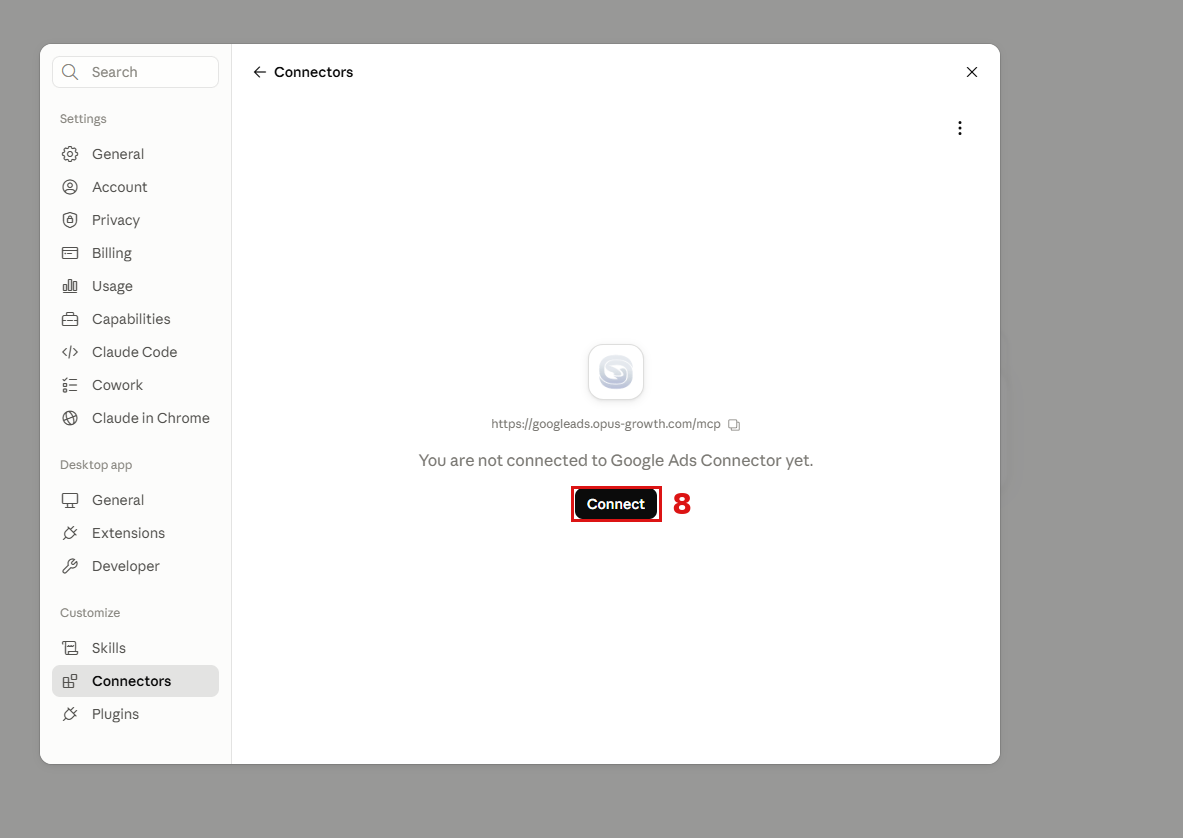
Once the connector is added, click Connect 8 on the page that opens.
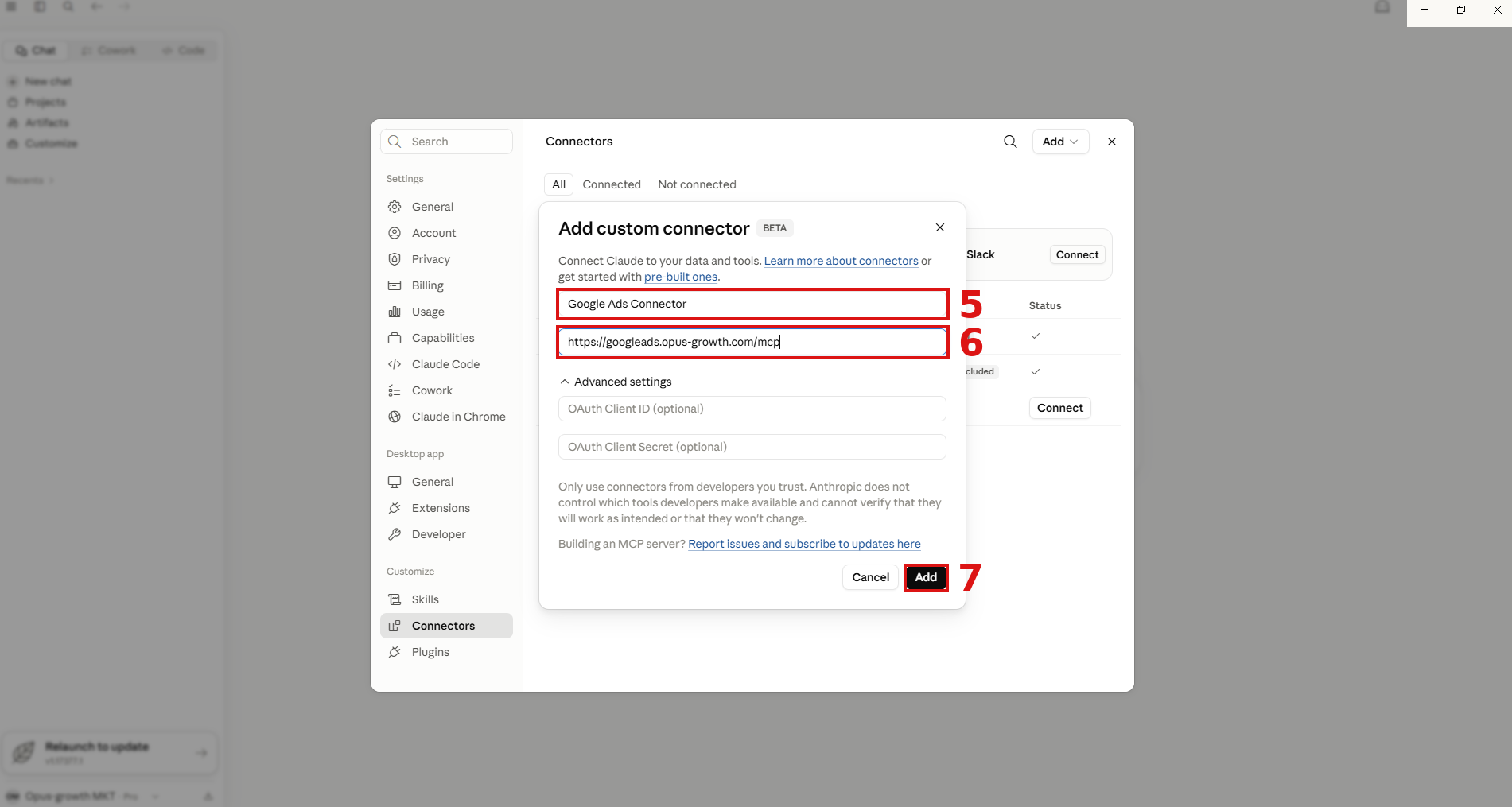
On the authorization page that opens in your browser, click Allow Access 9. This lets Claude reach the Opus Growth MCP server.