How to Connect Google Ads to Claude or ChatGPT (Remote MCP Connector Guide)
Connect your Google Ads account to Claude or ChatGPT with a single remote MCP connector and manage your ads in natural language. Setup takes 60 seconds, and the same connection also opens Meta, LinkedIn and TikTok. A step-by-step guide.
Category
Author
Date
Reading time
Share
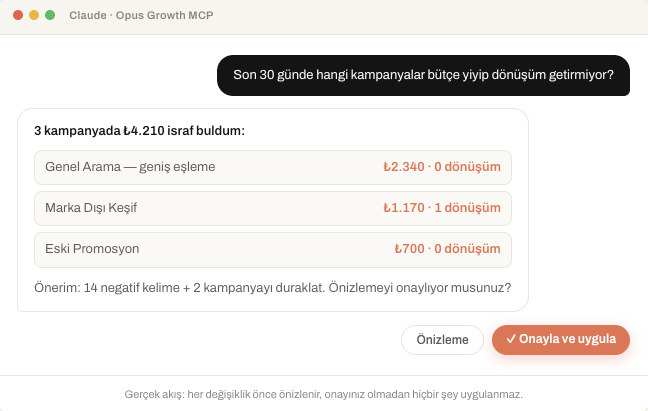
What if, instead of clicking around the Google Ads dashboard for hours, you could connect your account straight to Claude or ChatGPT and just say “find the search terms wasting money in the last 30 days” or “set this campaign's budget to $150”? Opus Growth makes this possible with a remote MCP connector. This guide walks you through connecting Google Ads to Claude or ChatGPT step by step, how the connection works, and your first commands.
What is a (remote) MCP connector?
The Model Context Protocol (MCP) is an open standard that lets AI assistants connect securely to external systems. Opus Growth is a remote MCP server that exposes Google Ads (and Meta, LinkedIn, TikTok) over this standard — meaning you install nothing on your computer. All you do is add a single connection URL to your assistant:
https://googleads.opus-growth.com/mcp
Behind this URL are 100+ tools that manage Google, Meta, LinkedIn and TikTok. The connection is stateless: your session survives server restarts, and your identity is held in a secure token.
What you need before you start
- A Google account with access to your Google Ads.
- A Claude (claude.ai or Claude desktop) or ChatGPT account.
- An Opus Growth account — you can start with a free trial.
Note: you never share your Google Ads password. Authorization happens through Google's own secure OAuth screen.
How to connect Google Ads to Claude
- In Claude, go to Settings → Connectors.
- Click Add custom connector.
- Name it “Opus Growth” and enter this URL: https://googleads.opus-growth.com/mcp
- Click Add, then press the Connect button that appears.
- Choose your account on the Google sign-in screen and grant access.
- Done — Opus Growth tools are now available in your chat.
How to connect Google Ads to ChatGPT
- In ChatGPT, open Settings → Connectors (enable Developer mode / Advanced if needed).
- Choose Add new connector.
- Enter this MCP URL: https://googleads.opus-growth.com/mcp
- Sign in with your Google account and approve the permissions.
- Opus Growth tools are ready in your chat.
Connecting your Google Ads account: connect_google_ads
Once the connector is added, the next step is linking your ad account. Simply tell the assistant: “connect my Google Ads account” (or connect_google_ads). The assistant gives you a one-time secure link. When you click it:
- Google's OAuth consent screen opens and you pick your account.
- Your access key (refresh token) is stored encrypted — never kept in plain text.
- If you have multiple accounts (or an MCC / manager account), you choose which one to work with. On the Agency plan you can manage several accounts.
Once connected, you won't have to sign in again — the connection is persistent.
Your first commands
After connecting, just talk in plain language. Examples:
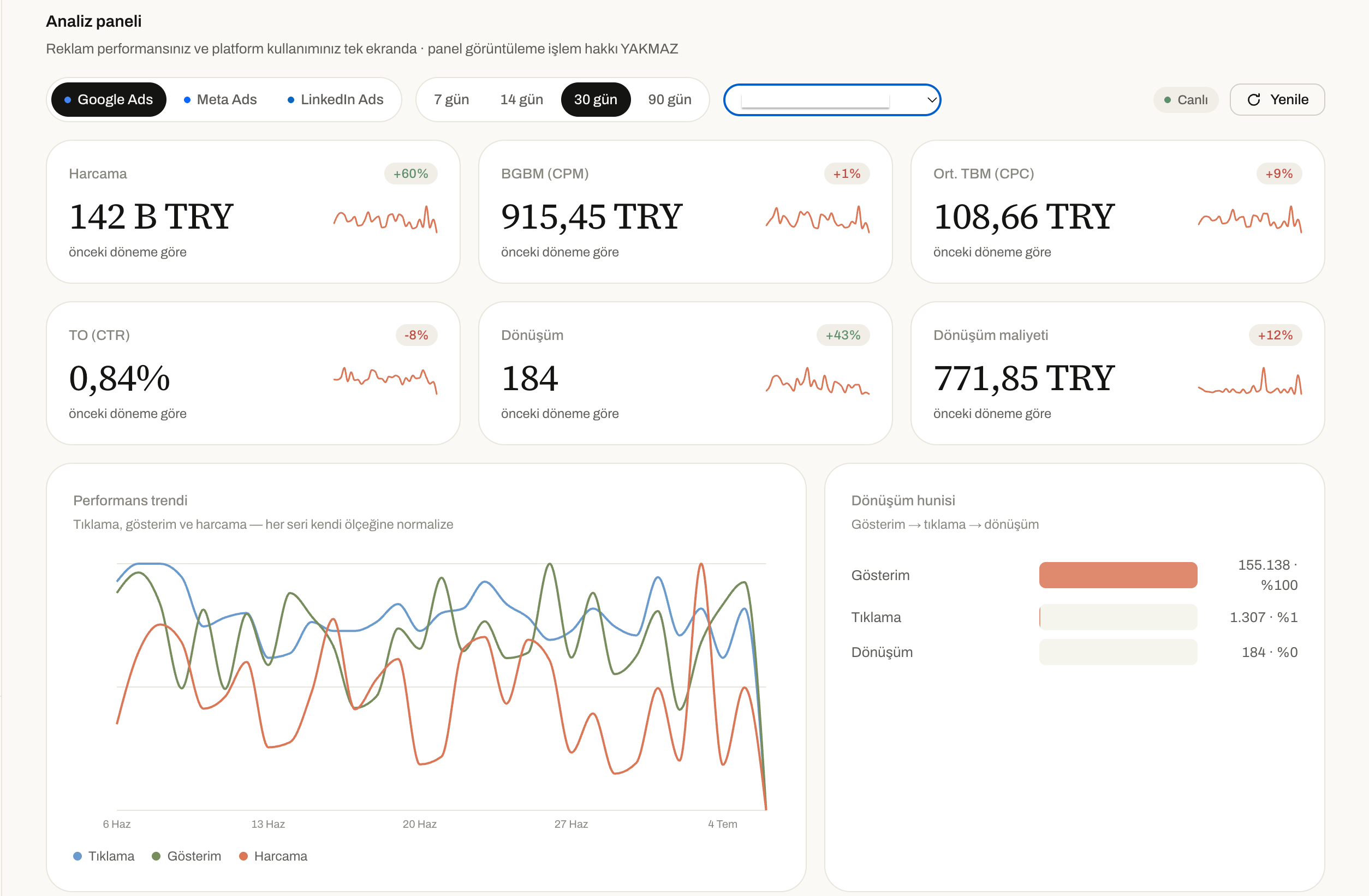
- Analysis (read): “List my Google Ads accounts.” · “Show my top-spending campaigns in the last 30 days.” · “Find search terms with no conversions.”
- Optimization: “Set this campaign's daily budget to $150.” · “Run this campaign only on weekdays, 9am–6pm.”
- Creation: “Create a new search campaign targeting the US with a $100 daily budget.” · “Add a responsive search ad with 3 headlines and 2 descriptions to this ad group.”
Is it safe? Opening your ad account to AI
Yes — and control always stays with you. Opus Growth's safety layers:
- Dry-run preview: Every change is previewed first; you see what will happen without touching anything live.
- Mandatory approval: The assistant can't apply any change without your explicit confirmation.
- Budget safety lock: Budget increases above 50% are automatically blocked.
- Audit log: Every operation is recorded.
- Encryption: All your access keys are stored encrypted; you can disconnect anytime from the panel.
One connection, four platforms
The same remote MCP connector opens not just Google Ads but your entire ad stack. You can connect Meta, LinkedIn and TikTok in the same chat:
- Meta (Facebook & Instagram): “connect my Meta account” (
connect_meta_ads) - LinkedIn Ads: “connect my LinkedIn account” (
connect_linkedin_ads) - TikTok Ads: “connect my TikTok account” (
connect_tiktok_ads)
That way you manage four platforms from a single AI chat, with no panel switching.
Plans
You start with a free trial. After that: Pro (all four platforms, campaign creation + optimization) or Agency (unlimited actions + multi-account / MCC management). You can manage or cancel your subscription anytime from the panel.
Frequently Asked Questions
What is a remote MCP connector?
A remote MCP connector is a link that lets assistants like Claude or ChatGPT securely connect to tools on a remote server. With Opus Growth you install nothing locally; you just add https://googleads.opus-growth.com/mcp to your assistant and sign in with Google.
Am I sharing my Google Ads password?
No. Authorization happens through Google's own secure OAuth screen; your password is never given to Opus Growth. Your access key is stored encrypted, and you can disconnect anytime from the panel.
Do I need to know how to code?
No. All you do is add the connection URL to Claude or ChatGPT and sign in with your Google account. Everything else runs through natural language.
Can the AI accidentally multiply my budget?
No. Every change is previewed first and applied only with your approval; budget increases above 50% are also automatically blocked.
Can I manage other platforms with the same connection?
Yes. The same MCP connector opens Meta, LinkedIn and TikTok alongside Google Ads; you add each by saying “connect my account.”
Is it free?
You can start with a free trial, then move to the Pro or Agency plan.
Connect your Google Ads to your AI assistant
Try everything in this article on your own account — 60-second setup, 7-day free trial, no credit card required.