How to Fix Disapproved Products in Google Merchant Center
When Merchant Center disapproves a product, that product doesn't show on Google. Find the reason, fix the product data and get the product reviewed again.
When Google Merchant Center disapproves one of your products, that product doesn't show in free listings or Shopping ads on Google. The reason is listed in the product details in Merchant Center. Data issues are resolved once you fix the product information.
In this guide we show how to find out why a product was disapproved, the most common reasons and how to fix the product. A disapproved product is a product with the "Not approved" status in Merchant Center that Google doesn't show because it doesn't follow Google's data or policy rules.
Why does Merchant Center disapprove products?
These are the common reasons for disapproval in Google's help pages:
- Price or availability mismatch. The price or availability in Merchant Center doesn't match the product page on your website.
- Unavailable product page. The product link returns an error or Google can't reach the product page.
- Missing or incorrect GTIN. The product has no barcode number, or the number doesn't match the manufacturer's.
- Missing brand. The brand field is left empty on new products.
- Policy violation. The product doesn't comply with one of Google's Shopping policies.
How do you find out why a product was disapproved?
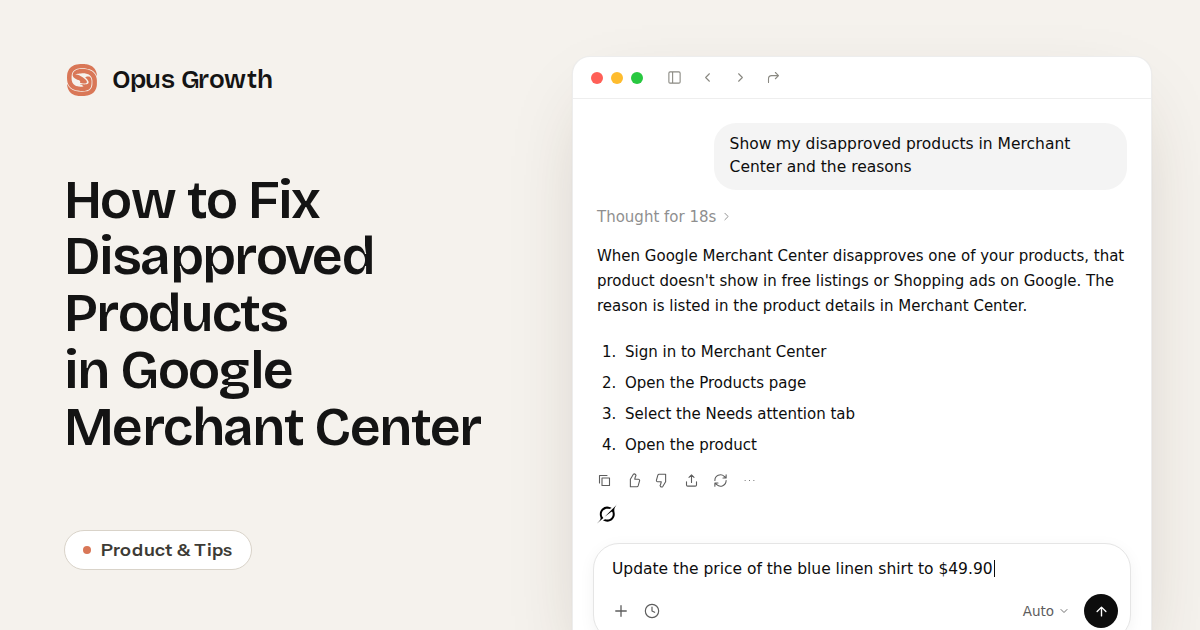
- Sign in to Merchant Center: Use the Google account that manages your products.
- Open the Products page: Go to Products in the menu.
- Select the Needs attention tab: Disapproved and limited products are listed in this tab by issue type.
- Open the product: The product details show the name of the issue, the country it affects and Google's page on how to fix it.
How do you fix a disapproved product?
- Fix the data at its source: If the product comes from a file or a store platform, change the information there. Edit products you added by hand directly in Merchant Center.
- Compare with your website: Make sure the product's name, price and availability match the product page on your website.
- Wait for the result: When you edit product data, the affected products are reviewed again automatically. This usually takes 3-5 business days.
What should you do if your account is suspended?
When your account is suspended, all of your products stop showing on Google, not just one. Website verification, return policy and misrepresentation are issues at the account level.
After you fix the issue, select Request review in Merchant Center. Account reviews usually take 7 business days. In severe cases of misrepresentation, Google suspends the account without warning. In other cases, it sends a warning at least 7 days before the suspension.
Ask your AI about disapproved products
Opus Growth connects your Google Merchant Center account to ChatGPT, Claude, Grok and other AIs. Instead of going through Merchant Center tab by tab, you write your question to your AI.
- "Show my disapproved products in Merchant Center and the reasons" Your AI lists the disapproved products and the issue for each one.
- "Update the price of the blue linen shirt to $49.90" It changes the price of a product you added with Opus Growth.
- "Are there any issues in my Merchant Center account?" You see account-level issues, their severity and the countries they affect.
- "List my most-clicked products from the last 30 days" You see clicks and conversions per product in free listings and Shopping ads.
When you ask about a single product, your AI also shows the country the issue affects and Google's page on how to fix it.
What you should know
- Your AI reads the issue and Google's explanation. You request the account review yourself in Merchant Center.
- If your products come from a file or a store platform such as Shopify, you make the fix at that source. Your AI tells you which information needs to change.
- You can't know in advance on which day a fixed product will be approved.
Try it now
Connect your Merchant Center account to your AI with Opus Growth and ask about your disapproved products. Set up the Google Merchant Center connection.
Frequently Asked Questions
When will a disapproved product show again?
After you fix the product data, the review usually takes 3-5 business days. The fixed product is reviewed again automatically.
What is the difference between "Not approved" and "Limited"?
A product that isn't approved doesn't show where the issue applies. A limited product does show, but because of an issue it only shows in some countries or to fewer people.
Why was my Merchant Center account suspended?
The reason is listed in the details of the account issue in Merchant Center. Misrepresentation, website verification and return policy are common account issues.
Can AI fix a disapproved product on its own?
Only for products you added with Opus Growth. For products that come from a file or a store platform, your AI tells you the issue and the change to make, and you make the fix at the source.
Related pages
Connect your Google Ads to your AI assistant
Try everything in this article on your own account. 60-second setup, 75 free credits, no credit card required.
Keep reading
November 5, 2026
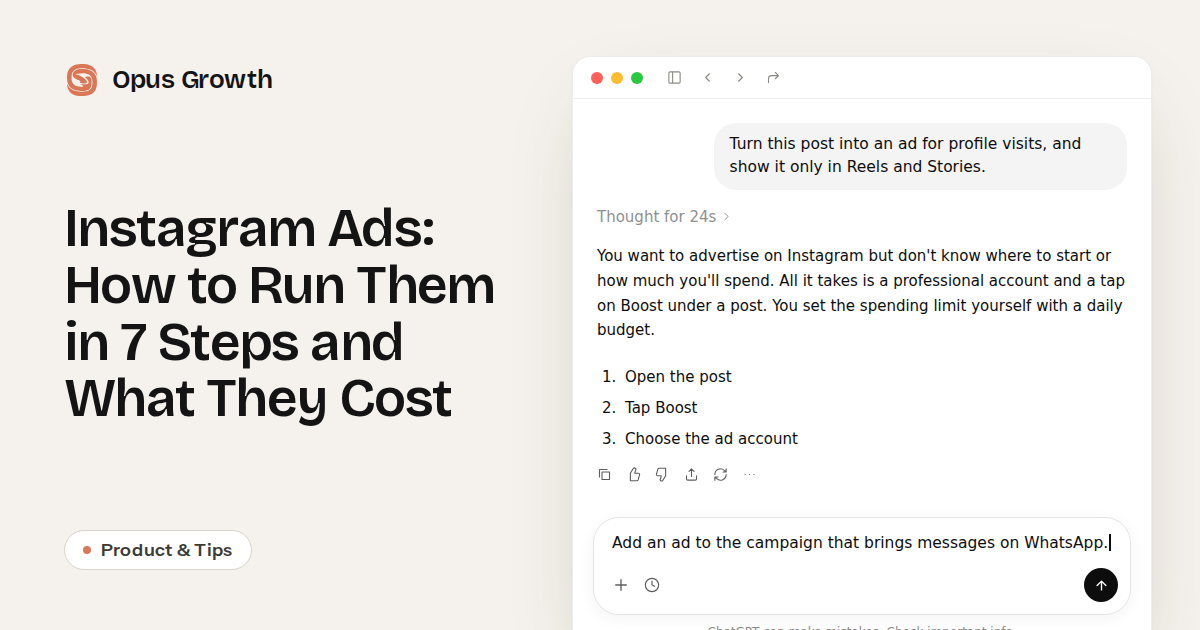
Instagram Ads: How to Run Them in 7 Steps and What They Cost
October 29, 2026
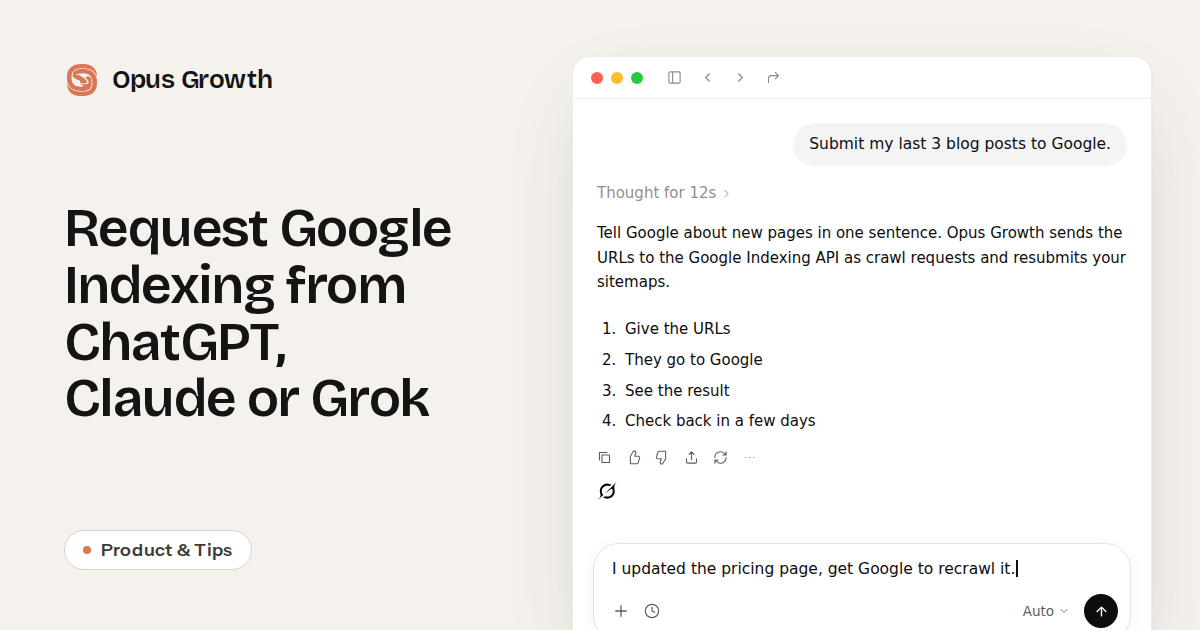
Request Google Indexing from ChatGPT, Claude or Grok
October 29, 2026